Live Alerts
This guide will walk you through the process of setting up Twitch live alerts for your Discord server.
What are Live Alerts?
Section titled “What are Live Alerts?”Live alerts display notification messages in a specified channel in your Discord server when the chosen user goes live on Twitch. These messages can be automatically updated or removed when the stream ends.
The Live Alerts List Page
Section titled “The Live Alerts List Page”Select the Live Alerts tab from the sidebar in the web dashboard.
Afterwards, you will be presented with the list screen. In my example screenshot, I have one alert setup for my own stream.
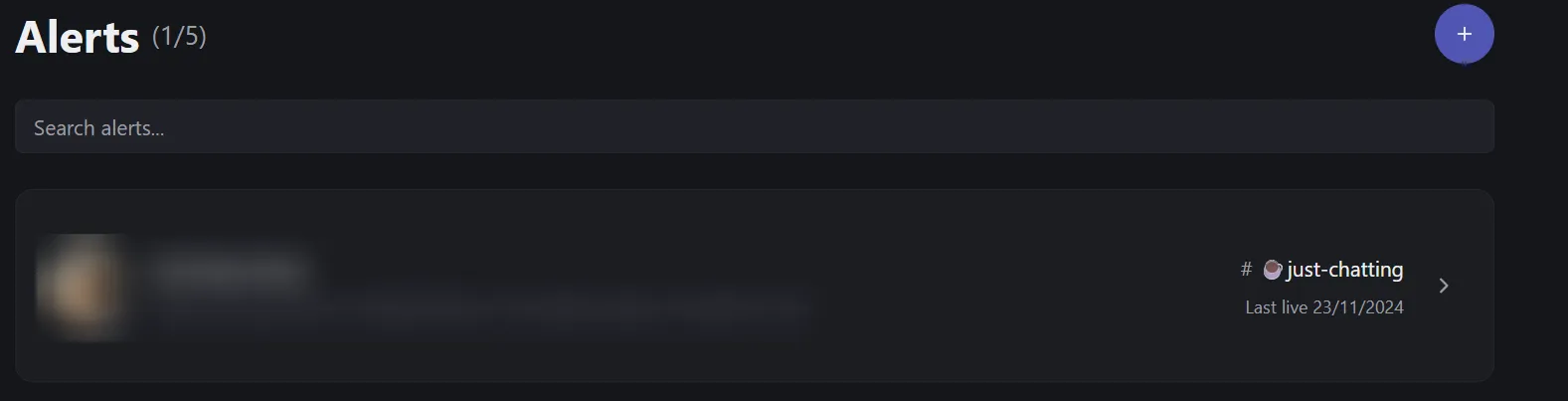
the + button can be used to add a new alert. Clicking on an existing alert will take you to edit the alert.
The number next to the Alerts title denotes how many alerts you have and your maximum allowed alerts (in this example, 1 out of 25). This limit can be increased if needed by contacting me.
Adding a new alert
Section titled “Adding a new alert”Click the + button to add a new alert.
The alert builder is setup into sections to make it easy to follow the steps required to create one.
Section 1 - Channel & Message
Section titled “Section 1 - Channel & Message”This section just contains the Twitch username of the channel you want to shout out, and the custom message you want to use.
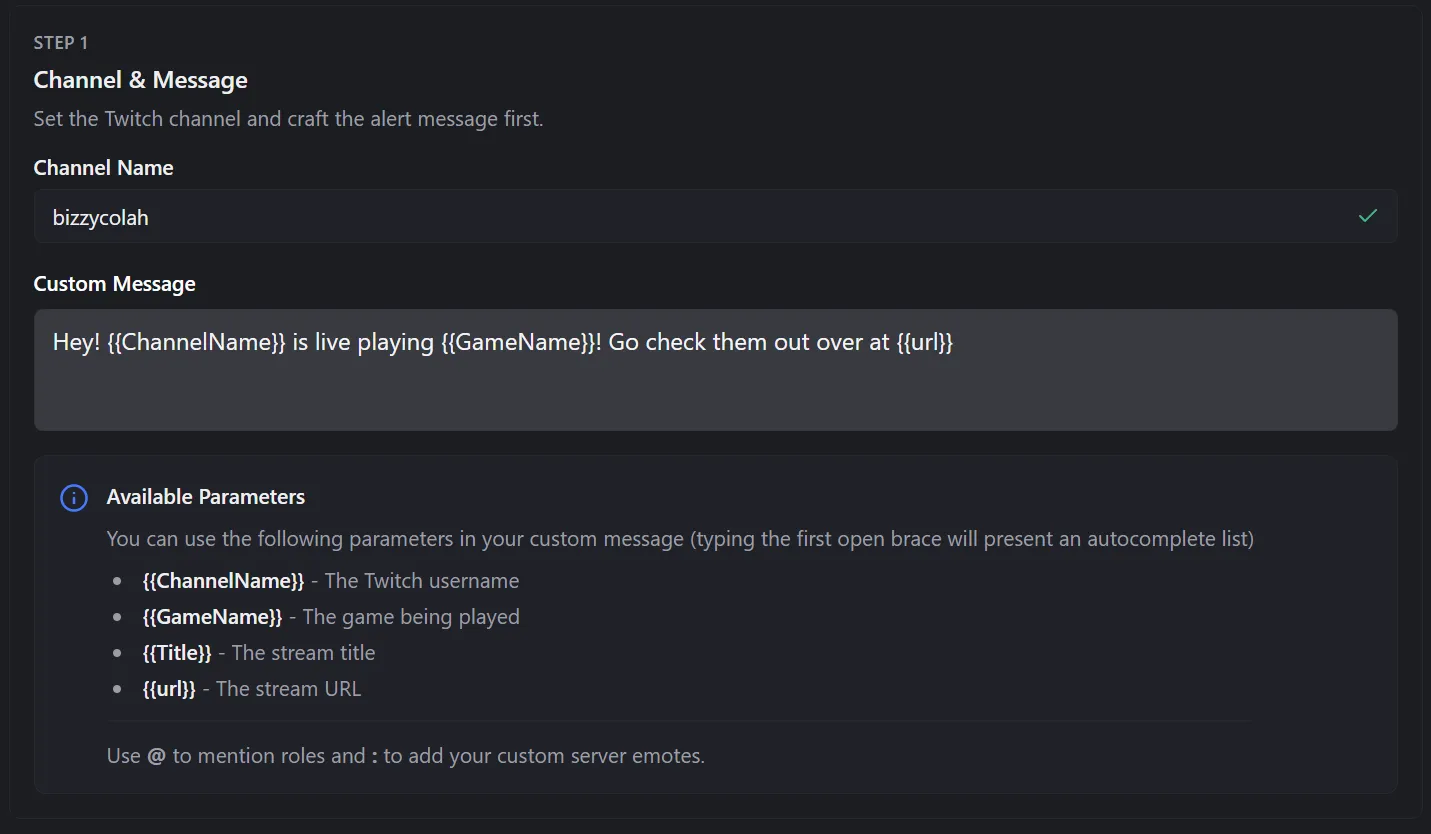
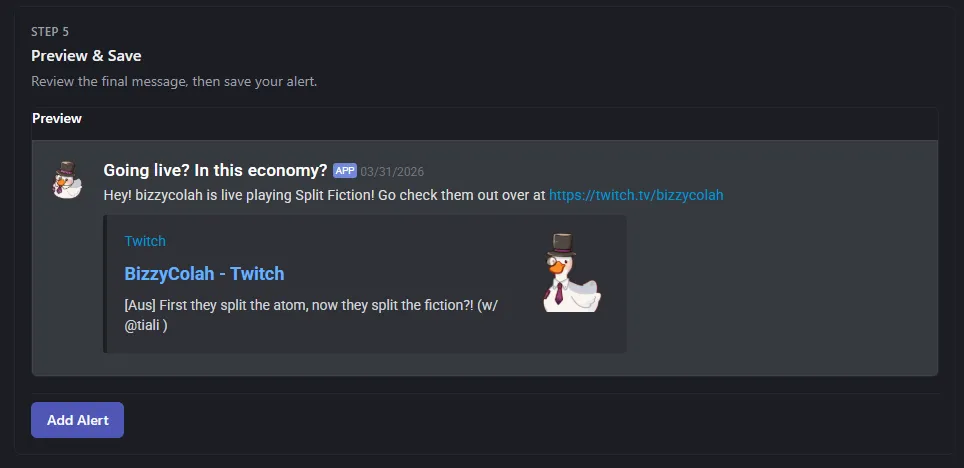
The channel name box will let you know if the username you entered was correct or not. If the user doesn’t exist, it will show an error. You can also confirm you have the right user by checking the preview in Step 5 has the same profile picture as the user you are intending to add.
The custom message box allows you to specify the message that is sent in the Discord message for the live alert. Note that this will not be used in the embed, just the message itself, and can be left empty if you just want the live embed and no custom message.
There are some parameters you can use that will be replaced by their values when the alert is sent, and also in the preview in Step 5.
Section 2 - Alert Options
Section titled “Section 2 - Alert Options”These options allow you to set the behaviour for when the channel goes offline, and also if you want to use a custom Discord embed in place of the default link preview.
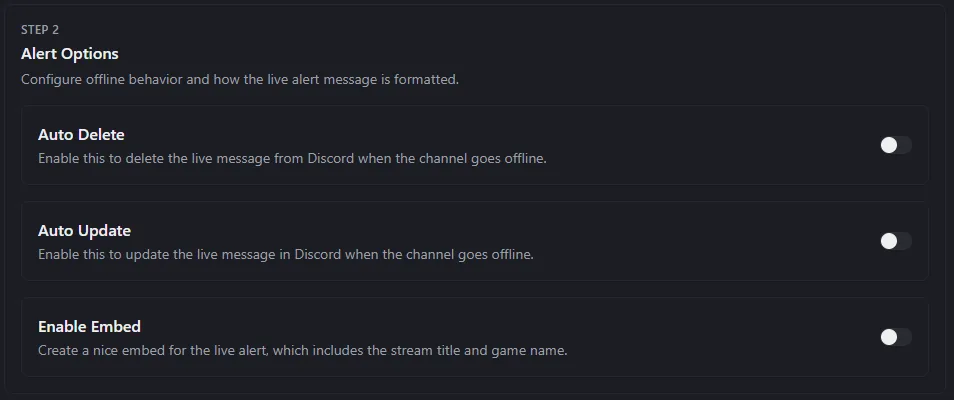
- Auto Delete - If this is enabled, when the channel goes offline the whole alert message will be deleted. Note that this sometimes causes Discord to leave the channel the message is in as unread even after the message is removed.
- Auto Update - If this is enabled, when the channel goes offline the message will get
stricken outand have [Offline] prepended for both the message and the embed title. - Enable Embed - Enables a custom embed to be used in place of the default Discord link preview.
Section 3 - Conditions
Section titled “Section 3 - Conditions”This section may be a bit more complex and is completely optional. It allows you to specify conditions that must be met for the alert to be sent (such as only sending alerts if the streamer is streaming in a specific category - in the below example image, we only send live alerts if the streamer is playing either Euro Truck Simulator 2 or American Truck Simulator)
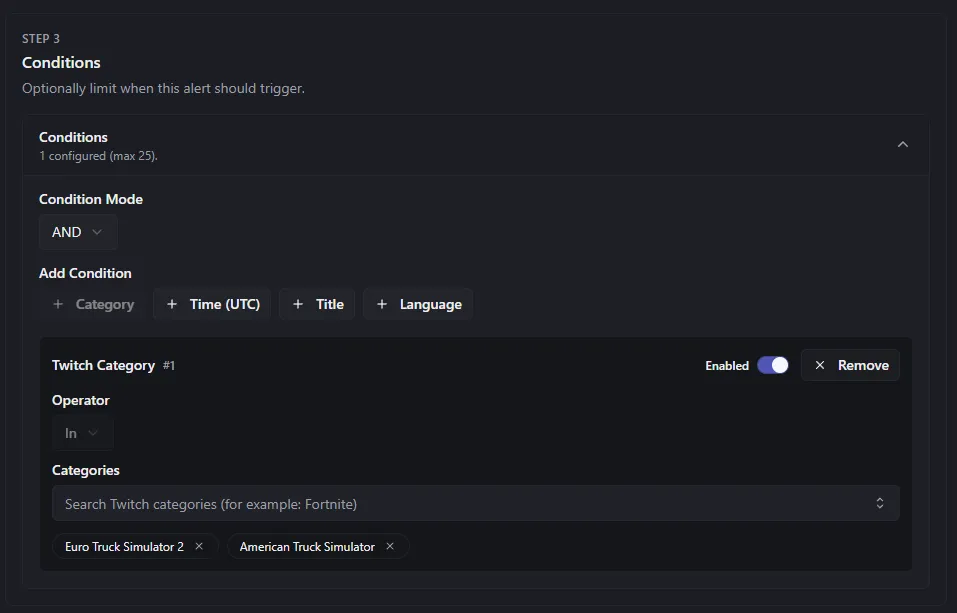
The Condition Mode specifies if it requires only one of the conditions to be met (OR), or if it requires all conditions to be met (AND).
There are currently 4 kinds of conditions that can be used:
1. Category
Section titled “1. Category”This is the condition we use in the example image above. It allows you to specify any number of Twitch categories (it will search as you type so you can pick the right one), and will only send the alert if the streamer is playing one of the specified categories.
2. Time (UTC)
Section titled “2. Time (UTC)”This is a condition that allows you to only send the alert if a user goes live within a specific timeframe (so say you only wanted an alert if they go live between 5PM and 10PM).
3. Title
Section titled “3. Title”This condition allows you to only send the alert based on the title of the stream. You can check if it contains certain phrases, exactly equels a phrase, or exactly does NOT equal a phrase.
4. Language
Section titled “4. Language”This condition allows you to only send the alert if the streamer has their stream tagged in a specific language. For example, you could set en if you have a streamer that sometimes streams in English and sometimes in another language but your community is only English speaking - this will then filter out their streams if it is not an English stream.
Section 4 - Webhook & Delivery Channel
Section titled “Section 4 - Webhook & Delivery Channel”This section allows you to configure where the live alert is sent, and how it is sent.
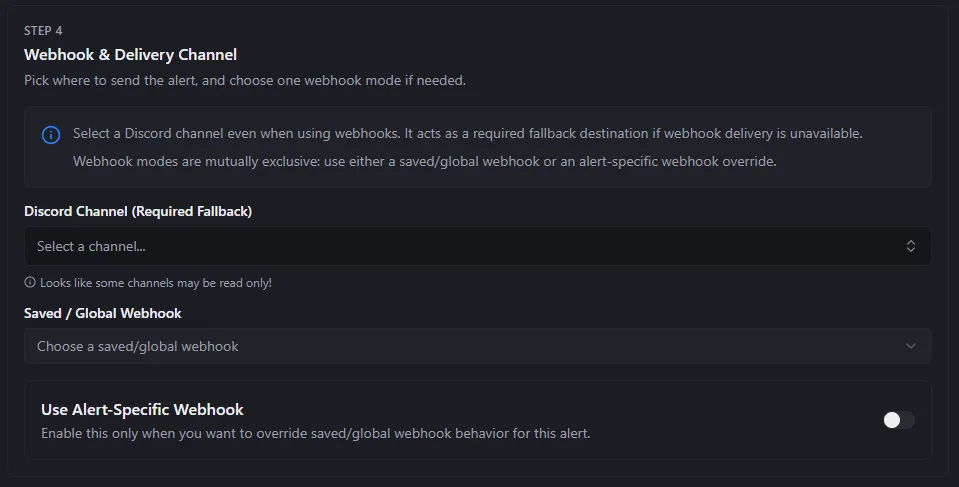
The first option in this section is a Discord channel. If you are using a webhook, this channel will NOT be used but IS still required to be set as a fallback if the webhook is no longer available. So if you intend to use a webhook, you can (if you like) just pick any channel from this list, it is pretty unlikely it will ever be used.
The second option is saved/global webhooks. These webhooks can be configured in your Guild settings and be re-used across multiple live alerts, this is the recommended way to configure webhooks.
The third option is alert specific webhooks - this can be used to setup a webhook that is only for this alert, so you can customise them per streamer.
Creating Webhooks
Section titled “Creating Webhooks”A webhook is a Discord feature. It is a URL that can be used to send a message to a specific channel with a custom username and profile picture. A webhook can only be configured to send to one specific channel (hence why the channel input from earlier does not do anything if you are using a webhook).
To create one, you need to go to your Discord server’s settings, and go to Apps -> Integrations -> Webhooks
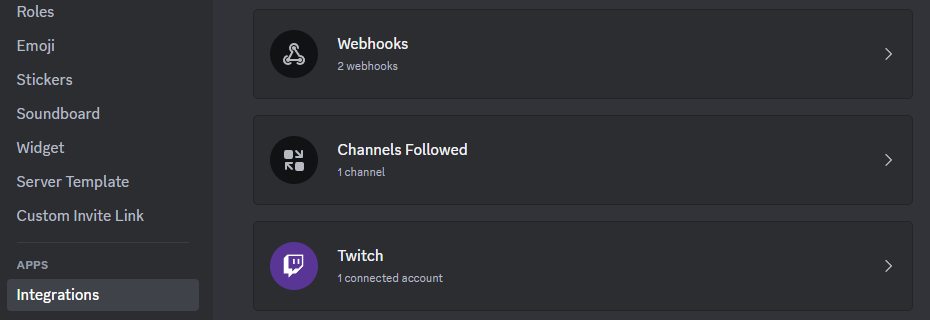
Click Webhooks and click the New Webhook button.
This will create a new webhook with a random name, click to drop it down and you can configure it.
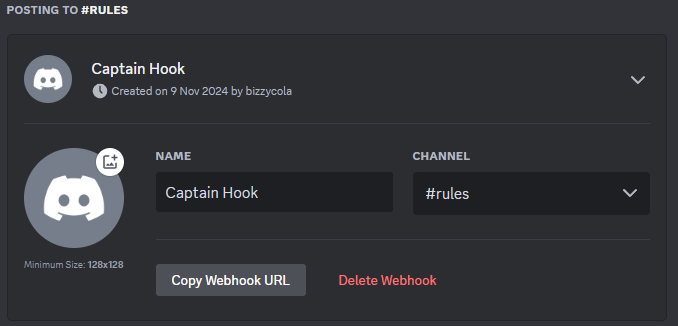
You don’t need to set a username as pfp here if you don’t wish to, as you can override this directly when you setup alerts in the dashboard.
Change the channel to your desired channel to post in, click Save Changes.
Click Copy Webhook URL. You can now use this webhook url when you create a webhook either for this alert, or in your global settings (in our dashboard under Guild Configuration -> Webhooks). Once you create a global webhook, you can come back here and select it to be used.
Section 5 - Preview & Save
Section titled “Section 5 - Preview & Save”This section contain the save button, but also a preview of what your message will look like when it is sent. When you change options in your alert, this preview will update automatically. It properly supports previewing the webhooks, and both the url preview and custom embeds. When you are happy with all your settings, hit Save and your alert will be created!