Youtube Alerts
This guide will walk you through the process of setting up Youtube video alerts for your Discord server.
What are Youtube Alerts?
Similar to Live Alerts, which post when someone goes live on Twitch, YouTube alerts will post a message in your Discord server when a new video, short, live or premiere is posted on a specified YouTube channel.
The Live Alerts List Page
Select the Youtube Alerts tab from the sidebar in the web dashboard.
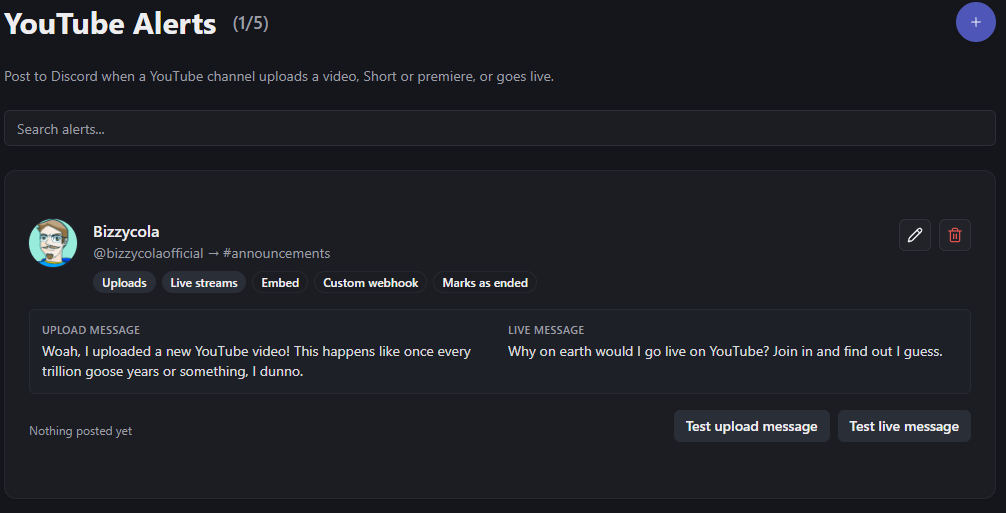
The + button can be used to add a new alert (if you don't currently have any, an empty state message will appear with an add button also). The number next to Youtube Alerts (1/5 in the screenshot) denotes how many alerts you've added, and how many your account is allowed to add. If you need more, you can reach out to me.
Adding a new alert
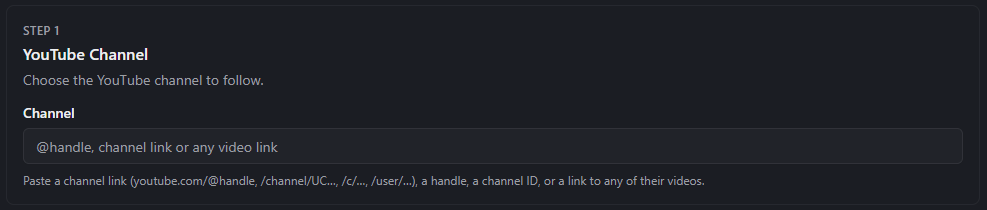
Step 1 - Youtube Channel
In this section, supply the username (like @MyChannelName) or profile link to the YouTube channel you wish to add.
Step 2 - What to Post
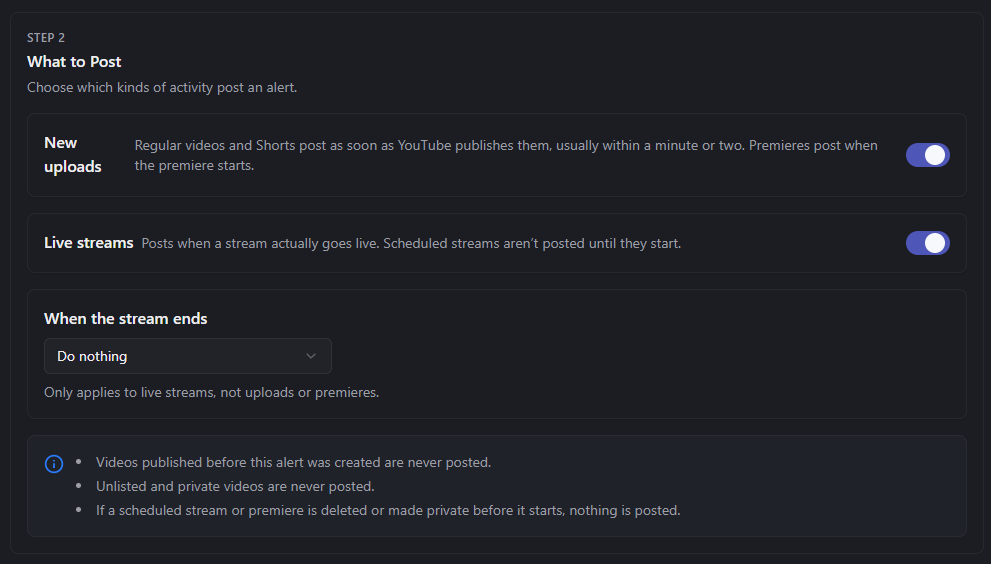
In this section, specify if you want to post for new uploads, live streams, or both. You may also select what happens when a live stream video ends - whether to update the message to denote the stream is offline, remove the message entirely, or do nothing.
Step 3 - Messages & Embed
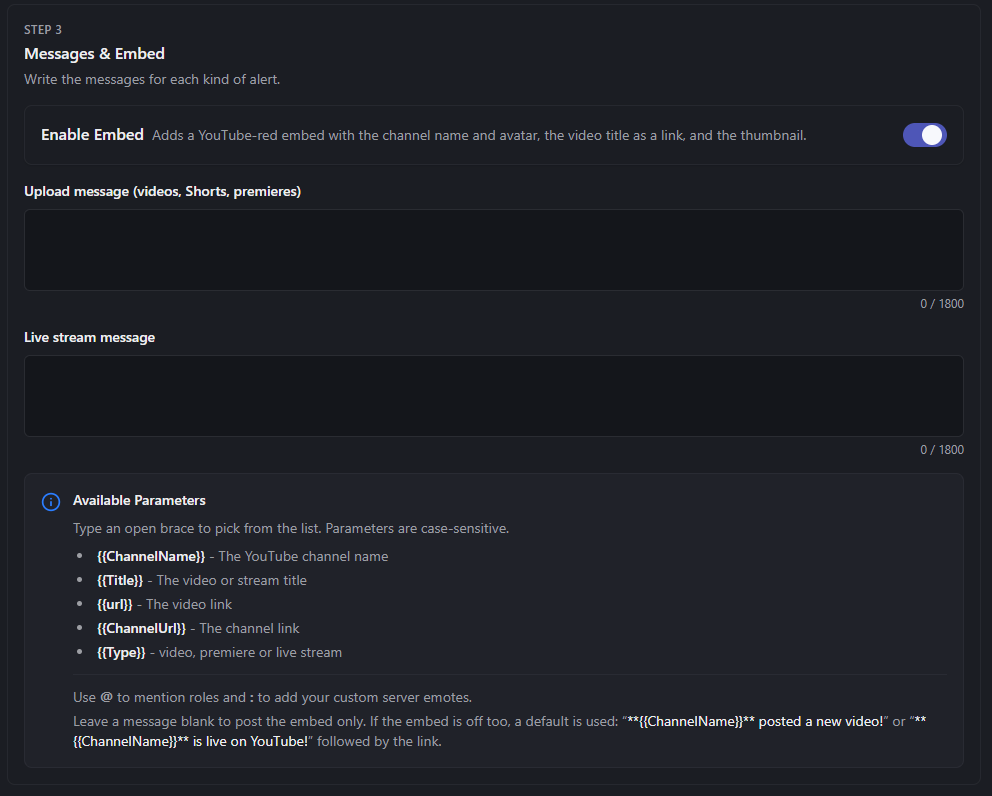
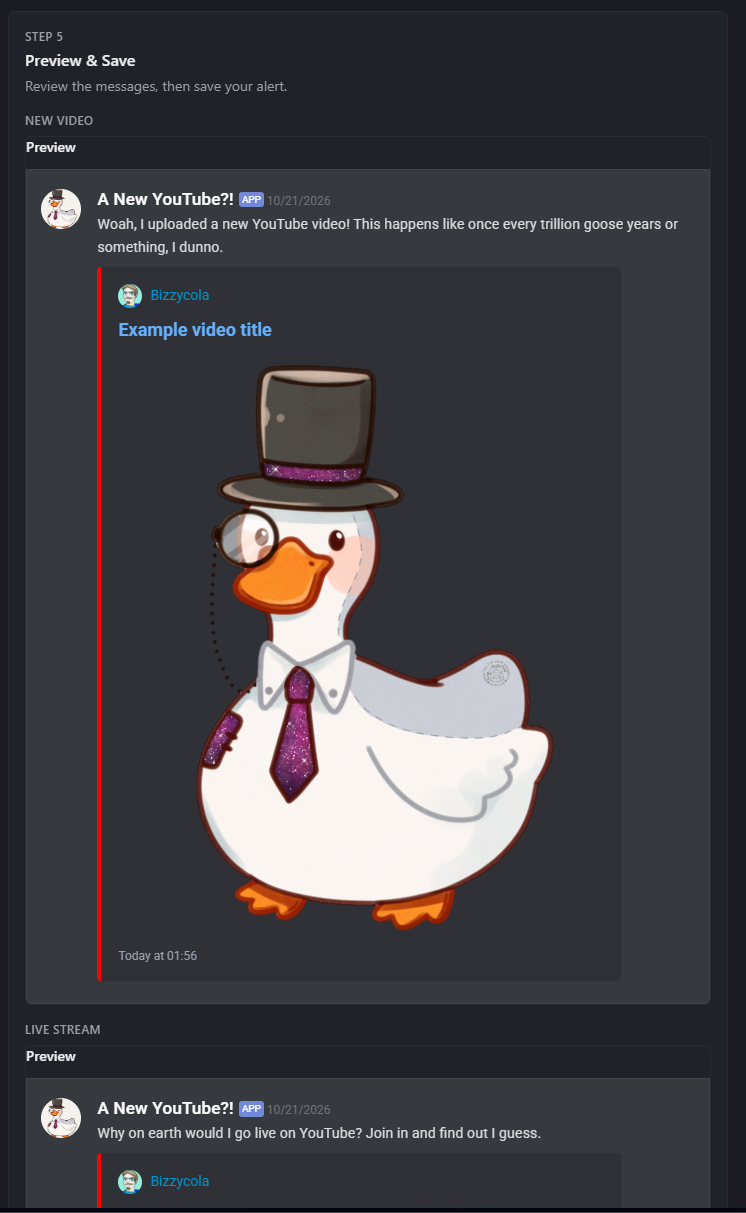
In this section, you specify the details for the Discord message (and optionally the embed) itself. You can specify different messages depending if the post is for a video or for a live stream. This also allows you to add different role pings depending on the type of content. You can optionally enable a nice embed similar to the Twitch live alerts if you wish. Message previews will appear on the right-hand side, showing both video and live message previews (if you are on a small screen, they may be at the bottom of the form instead).
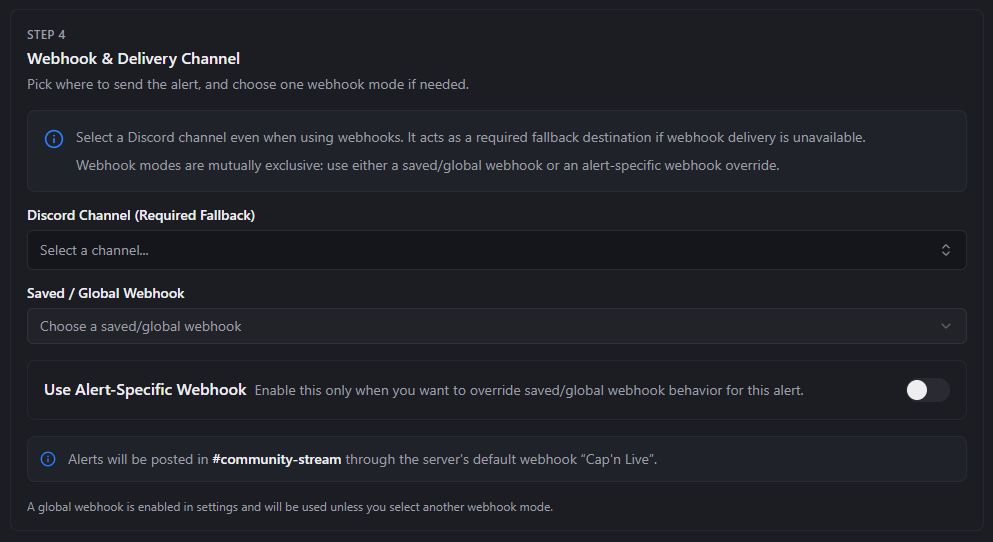
Step 4 - Webhook & Delivery Channel
In this section you specify where and how the message is sent. Much like live alerts and announcements, you have the option of using Webhooks or simply letting the bot send a message directly to the channel itself. Webhooks allow a custom username and profile picture not directly associated with the bot. As with live alerts, the Discord channel selection is required even when using webhooks, as it will be used as a fallback if the webhook fails.
Step 5 - Previews
This section shows the previews and the button to finally save the YouTube upload alert.
Once you're done, save the alert and next time you upload a YouTube video (or go live), it will send your community a friendly post!\
Video Types
At this time this is no difference between different types of videos except for live stream. Regular videos and shorts will show up the same way.