Announcements
Introduction
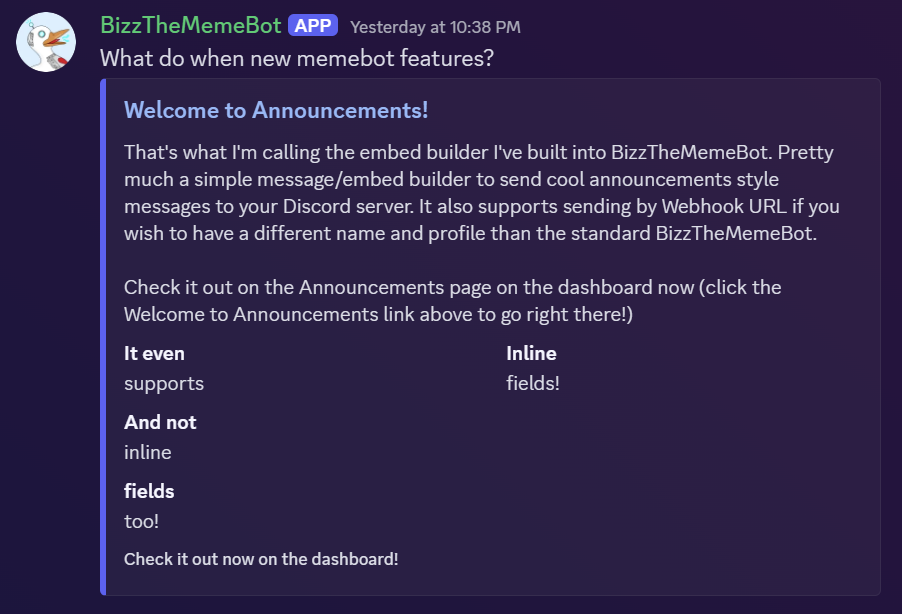
This guide will briefly go over how to send cool custom embed messages (announcements) to your server like this one:
Click the Announcements link on the Dashboard and you'll be immediately presented with this screen:
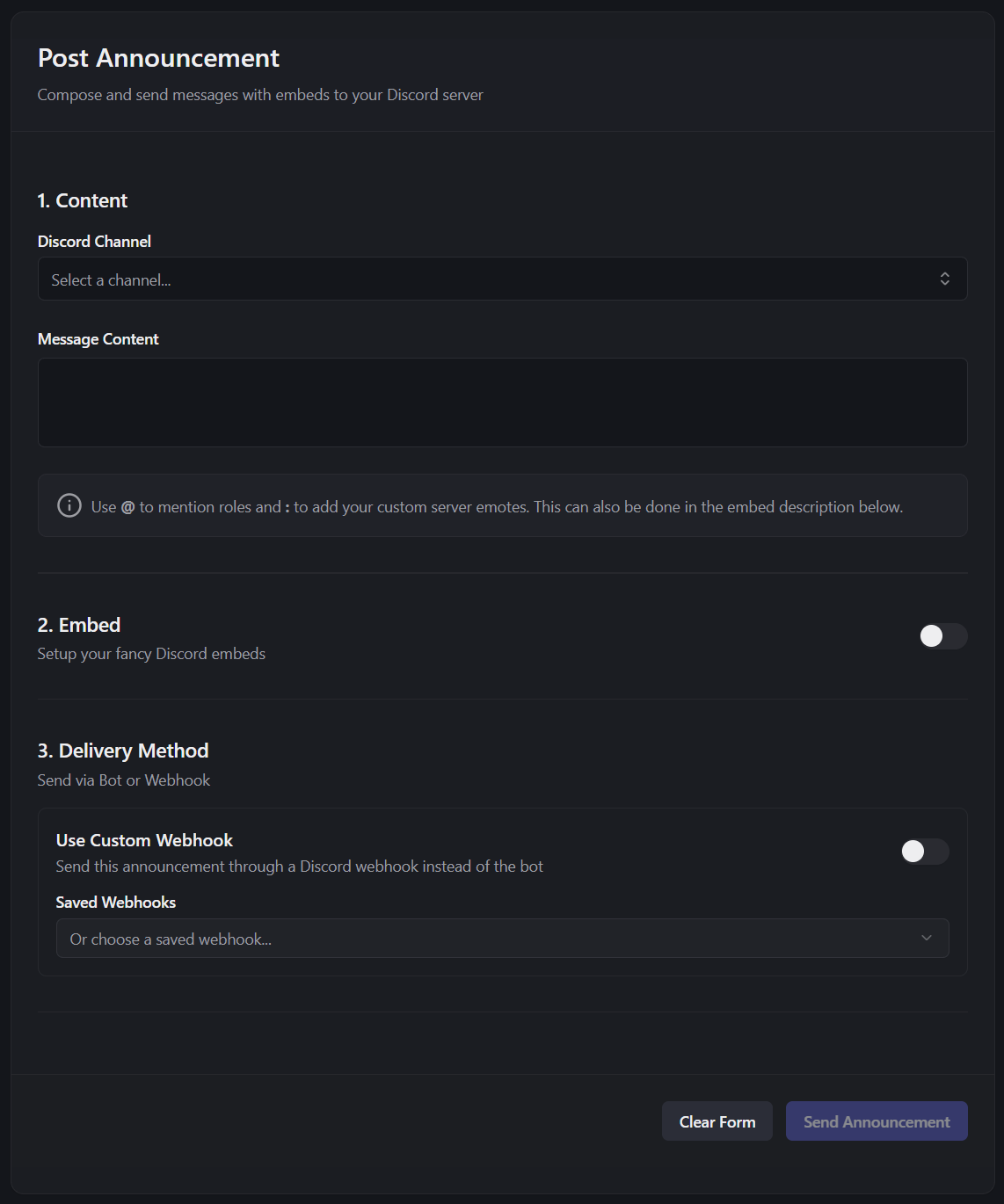
Channel & Content
Here you can select the channel to post in (note if you use a webhook this won't be used, but is still required to be selected at this time).
Next you can fill out the content of the message (this is the standard discord message, you can leave this blank if you only want an embed).
Embeds
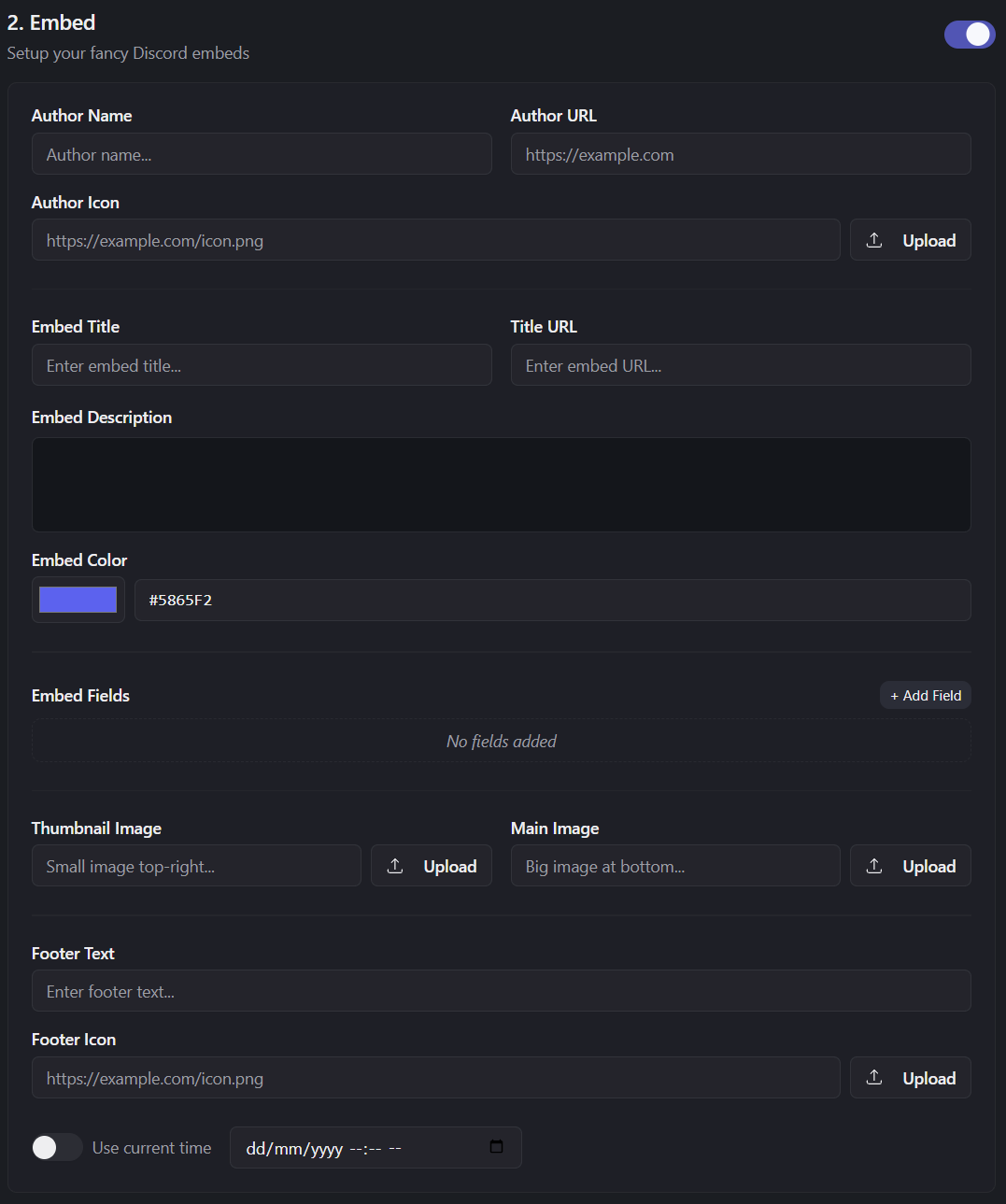
Ticking the Embed box will present you with this form:
Here is an annotated image to show off what most fields relate to:
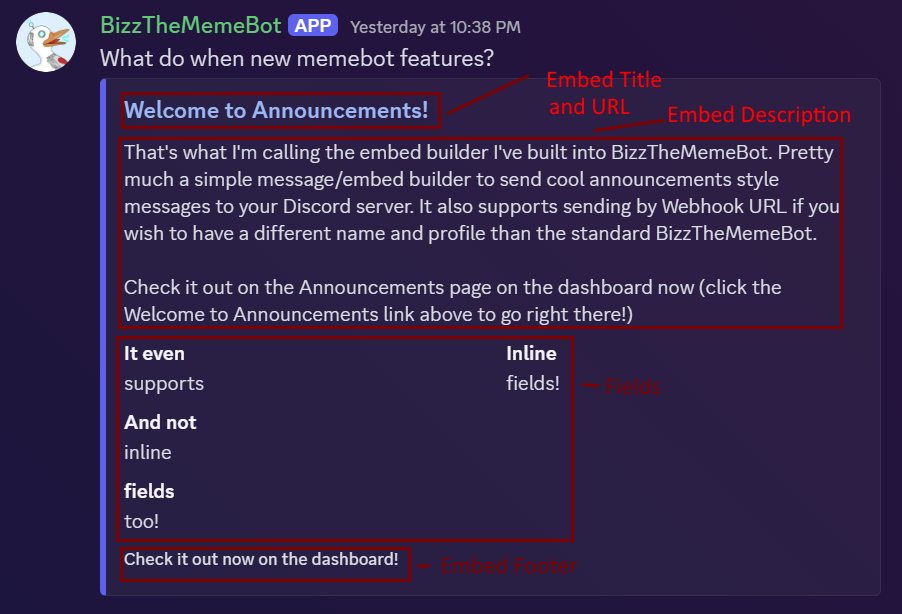
Filling out the Embed URL will make the Embed Title a clickable link.
The image will appear at the bottom of the embed.
The embed color controls the colour of the left-side bar of the embed.
With fields, you can add as many as you like. Setting more than one in a row to inline will make them appear side-by-side.
Webhooks & Sending
if you wish to use a webhook, you can either toggle the Use Webhook option and supply a pre-configured webhook URL, or you can select one of your previously created webhooks from the Guild Configuration -> Webhooks page.
Once you're ready, click the Send Announcement button to post the message! And don't forget to check the handy preview at the bottom to check out what your embed will look like.