Text Commands
Visit the Custom Commands page on the dashboard and you will be presented with a list of your existing commands, or an empty list if you have none. You can click the + button to add a new command, or click on an existing command to edit it.
When setting up a new custom command, you can choose between one of two kinds of commands: text commands or script commands. In this document, we will cover the text commands.
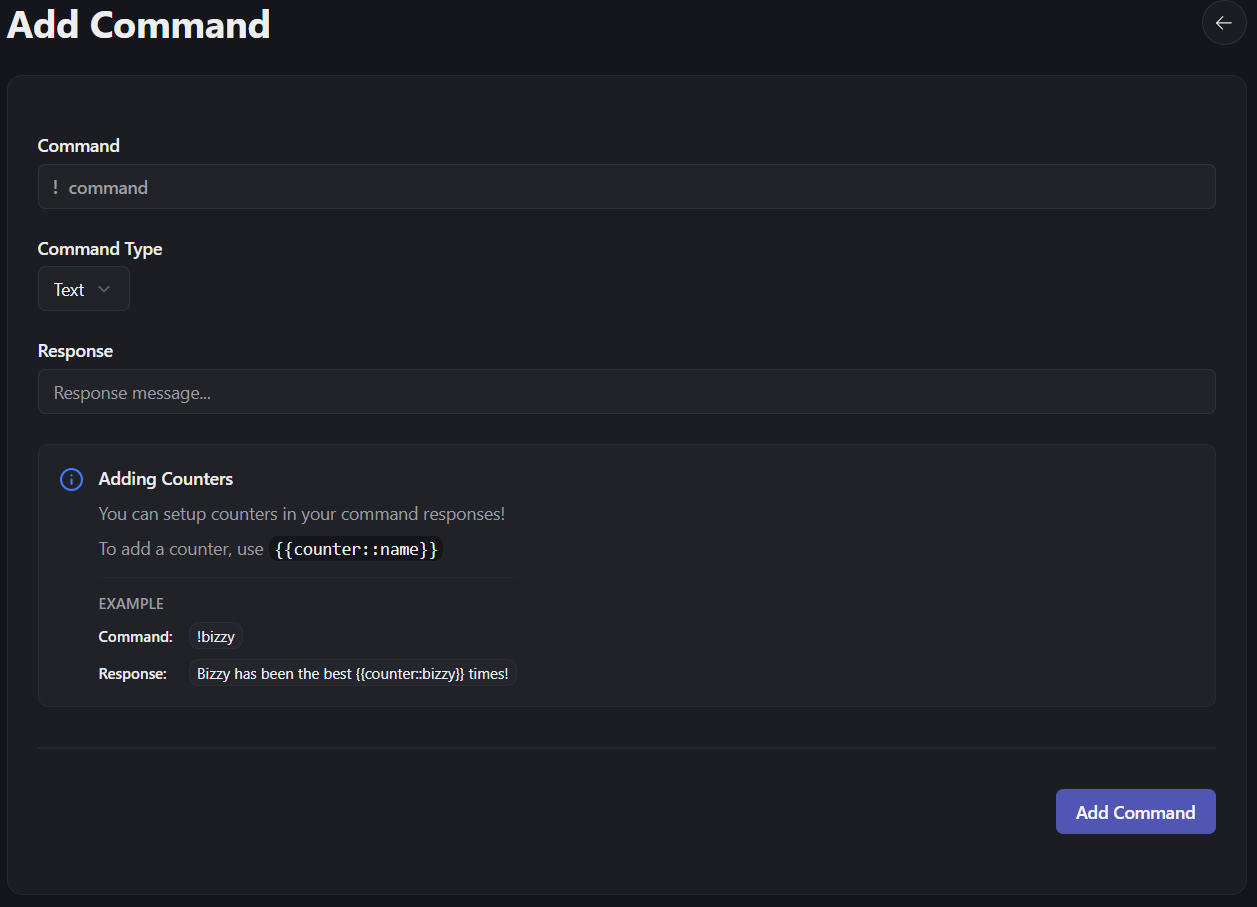
Text commands are fairly simple. Provide the command name (without the ! prefix, this will be added automatically).
Next, you choose the Text option and fill out the response you want the bot to return when you run the command. At this time, there is no support for embeds or attachments, just plain text. You can, however, create embeds with images using script commands (see below).
Ideally in the future I will add the option to paste the URL to an image to post, or allow uploading custom images to send.
The response field supports variables, which are described in Response Variables below.
Once you've filled out the options, add the command and try it out! If it doesn't work, ensure the bot has permission to read and post in whichever channel you're attempting to call the command in.
Response Variables
A text command's response can include variables, written inside double curly braces like {{from}}.
| Variable | Replaced with |
|---|---|
{{from}} | A mention of the user who used the command. |
{{to}} | A mention of the first user mentioned in the message. If nobody was mentioned, this is left blank. |
{{channel}} | A mention of the channel the command was used in. |
{{server}} | The name of the server. |
{{counter::name}} | The counter called name, after adding one to it. |
For example, this response:
{{from}} hugs {{to}}! That's hug #{{counter::hugs}}.gives something like this when someone uses the command and mentions another user:
@Bizzycola hugs @Tiali! That's hug #1!Counters
A counter goes up by one each time its variable appears in a response, starting from 1. If a response uses the same counter twice, it goes up by two.
Counters belong to your server, so different commands can share the same counter by using the same name. Counter names aren't case-sensitive, so {{counter::Hugs}} and {{counter::hugs}} are the same counter.
If you leave out the name, as in {{counter}}, the bot replies with (oops counter, missing tag) instead.
You can change a counter's value with !setcounter, or set it back to 0 with !rscounter.
Caution
Variable names must be typed in lowercase, exactly as shown above. If the bot doesn't recognise a variable, it replaces it with an error message instead, such as (oops user, user) for {{user}}.
Manage text commands in Discord
Custom commands can be managed in Discord with a handful of Discord commands.
You can use the commands listed below to manage your custom commands.
All these commands require you to have the Discord Administrator permission in the server you are trying to use them in.
Note
These do not exist as /slash commands, and must be used as !command.
!addcmd
Used to add a new custom command to your server.
This command takes 2 arguments. The first is the name of the Custom Command you wish to add. The second is the response text for the command.
!addcmd mycommand Hello, this command has been used {{counter::mycommand}} times!The response variables can be used here.
- Parameters
- name: string
- response: string
!remcmd
Used to remove a custom command from your server.
This command takes 1 argument. The name of the command you wish to remove.
!remcmd mycommand- Parameters
- name: string
!setcounter
Used to set the value of a counter.
This command takes 2 arguments. The first is the name of the counter you wish to set. The second is the value you wish to set it to.
!setcounter mycommand 10Now if we use our command from earlier (!mycommand), it will increment by one and say:
Hello, this command has been used 11 times!- Parameters
- counter: string
- value: number
!rscounter
Used to reset a counter to 0.
This command takes 1 argument. The name of the counter you wish to reset.
!rscounter mycommandNow if we use our command from earlier (!mycommand), it will say:
Hello, this command has been used 1 times!- Parameters
- counter: string