Webhooks
Guild Webhooks allows you to create reusable webhooks that can be shared between announcements, live alerts, and anywhere else webhooks can be used.
The webhook page shows off all available webhook setups:
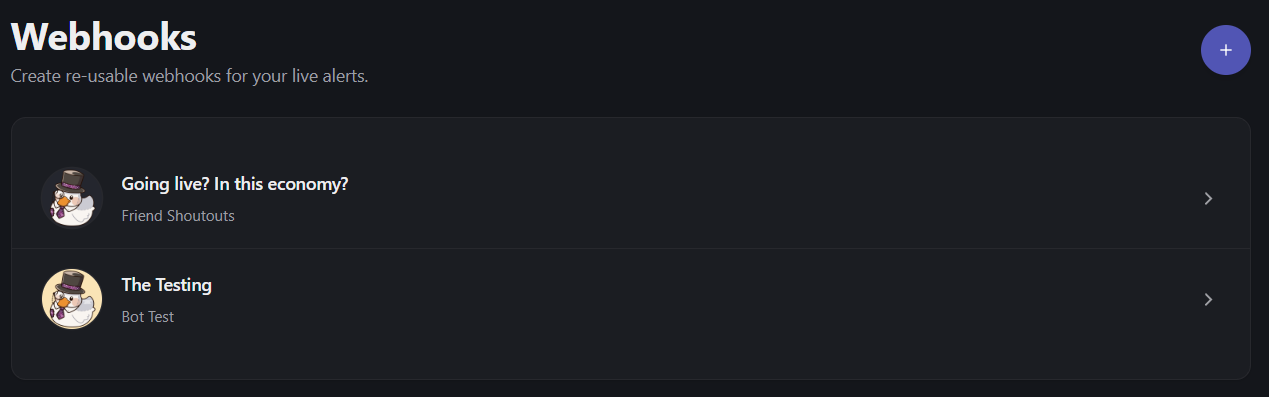
Adding and modifying webhooks is fairly simple:
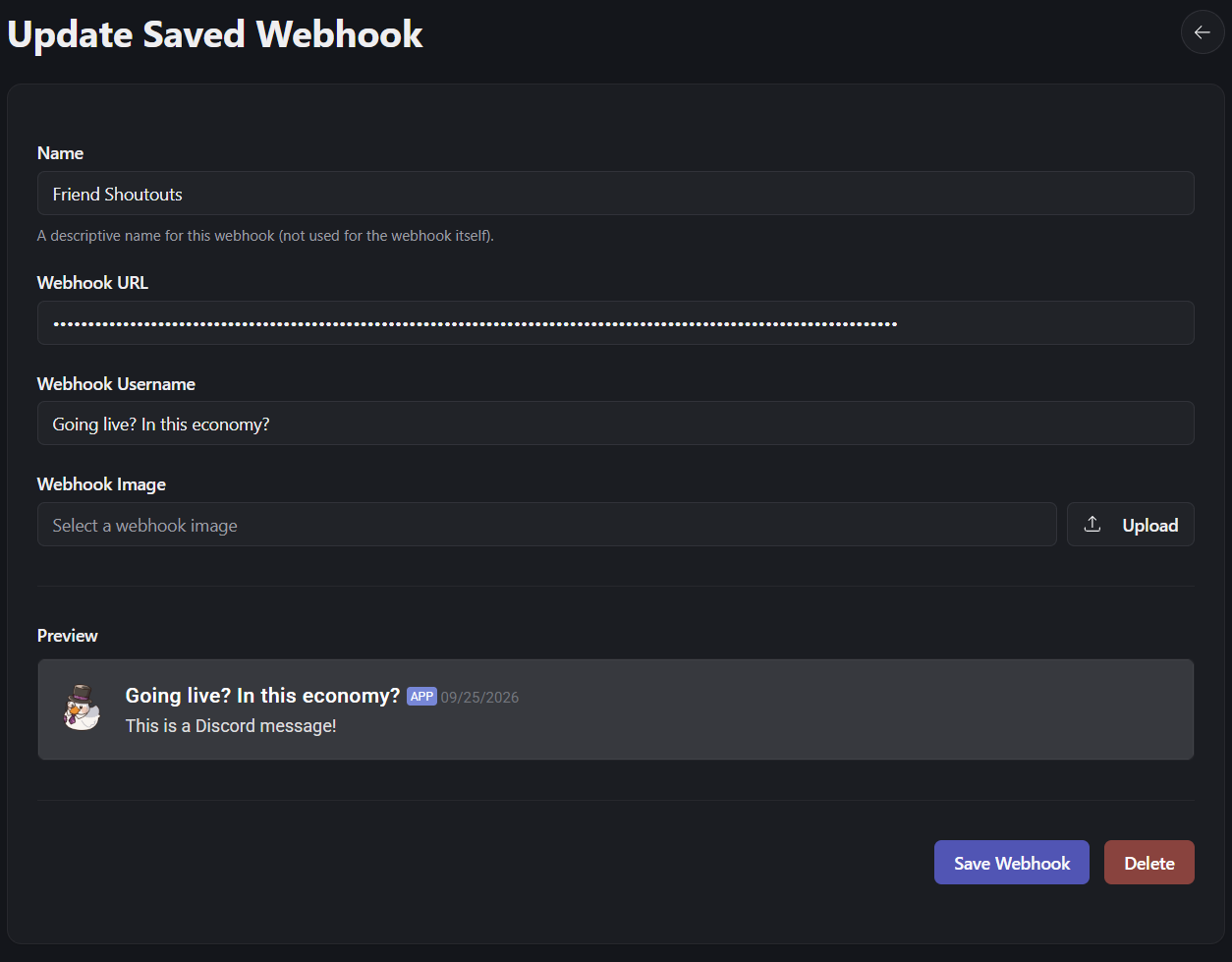
Set a friendly name to help you remember which one is which, paste in your Discord Webhook URL you setup in the channel of your choice, then set your custom usernamer and profile picture if desired (if not, it will fallback to whatever is configured in Discord itself. If you set these, they will always override the Discord settings).
The bottom will show you a message preview of your webhook.
Creating Webhooks
To actually get a webhook URL, you need to create a webhook in Discord itself within your server for a particular channel. A Discord webhook can only ever be associated to one single channel, and will always only send to that channel.
In Discord, enter the settings for your desired channel.
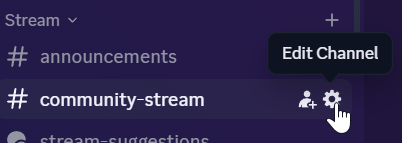
Enter Integrations -> Webhooks
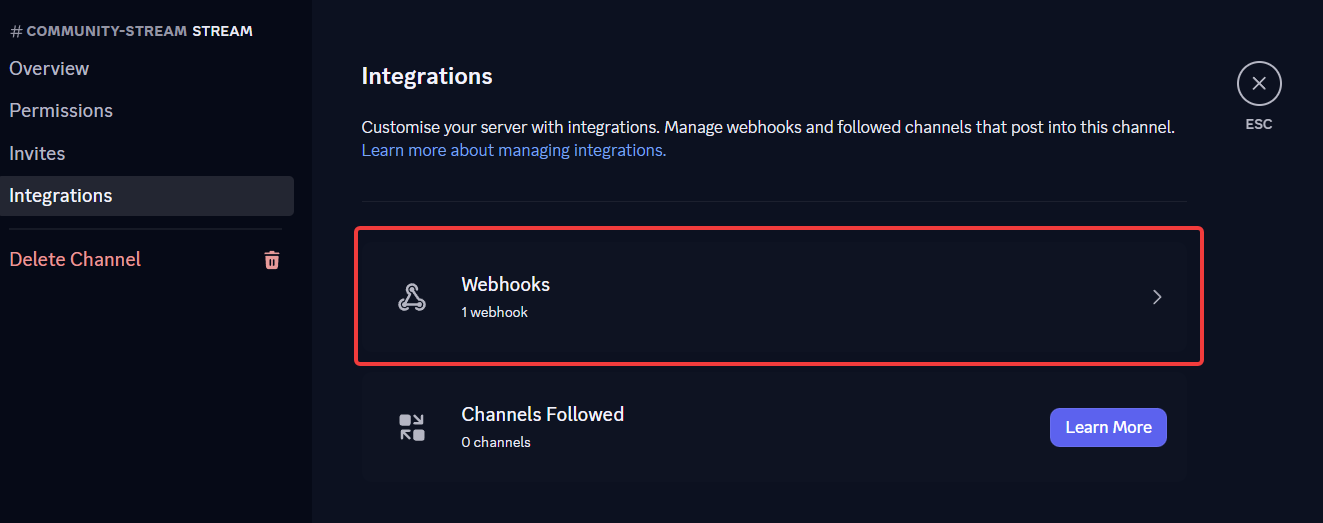
Click New Webhook
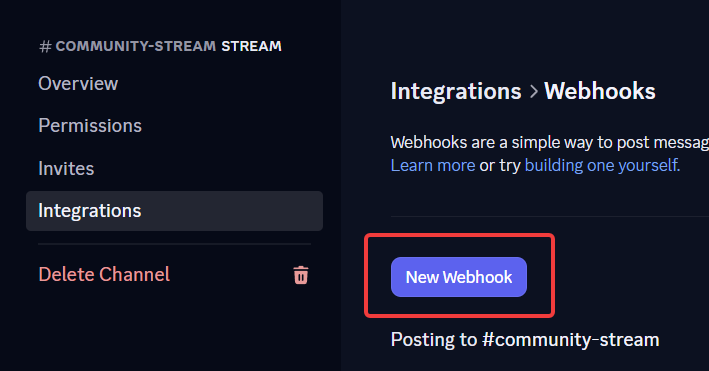
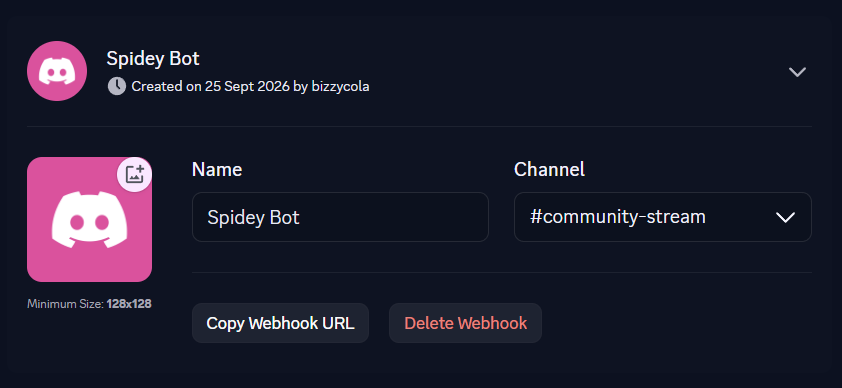
This will add a new webhook to your channel. You can then click the Copy Webhook URL button to copy the URL, and paste it into the Webhook URL field in the memebot dashboard.
You can set a default display name and profile picture on the webhook if you wish, but anything you set in the memebot dashboard will override it, and as such it is recommended to manage your webhook details directly in the dashboard as opposed to having to update them all in Discord when they change.
Caution
Anyone who has this webhook URL can post ANYTHING to that Discord channel without ever even being in your Discord server. Do NOT share this URL with anyone, paste it directly into the memebot dashboard, save changes, and keep the URL hidden from anyone else.
Once you add the URL into your guild webhook, you can now assign in in Live Alerts and Announcements (Announcements is a great feature to use to test if your live alert is working!)