Script Commands
Visit the Custom Commands page on the dashboard and you will be presented with a list of your existing commands, or an empty list if you have none. You can click the + button to add a new command, or click on an existing command to edit it.
When setting up a new custom command, you can choose between one of two kinds of commands: text commands or script commands. In this document, we will cover the script commands.
Script commands are more advanced. They allow you to write your own custom Javascript code which is executed in a sandbox with a handful of utility classes and variables passed in to help you.
The ctx object allows you to access the variables (such as the user who sent the message), and functions for replying with a message or a Discord embed.
When you switch the command type to script, the rest of the options will be replaced with a code editor where you can write your script.
Provided Variables
A few objects are provided to you with which you can perform some basic tasks and retrieve some information from the command usage.
ctx
The ctx object contains information about the command usage and allows responding to the command.
Here are the available properties:
ctx.sendReply(message)
Sends a reply to the original message that triggered the command. This can only be called once.
- Parameters
- message: string
ctx.sendEmbed(embed)
Sends a Discord embed as a reply to the original message that triggered the command. This can only be called once.
- Parameters
- embed: ScriptDiscordEmbed
ctx.getMessageAuthor()
Holds information about the user who used the command, and where it was used.
getMessageAuthor() returns an object containing the following properties:
| Property | Type | Description |
|---|---|---|
username | string | Username of the user who triggered the command |
ping | string | @ ping for the user who triggered the command |
avatarUrl | string | URL of the user's avatar |
discriminator | string | 4 number discriminator for the username (NOTE: Discord is phasing these out, most users no longer have one) |
displayName | string | Display name of the user who triggered the command in the current Discord server |
- Returns
- object
As you can see, the ctx object allows you to send messages and embeds and get information about the user who sent the command. You can see an example below on how to send embeds, I will document the embed types in a future update to these docs.
kvStore
Caution
The kvStore data is backed up along with all other bot data, however we still take no responsibility for any data loss that may occur. Please ensure you have a backup of your data if you are storing anything important.
The KVStore object allows you to store and retrieve data from the bot's database. This can be used to store data between command usages.
It contains five methods:
kvStore.GetValue(key)
Returns the value stored in the database for the given key as a string.
- Parameters
- key: string
- Returns
- string
kvStore.GetIntValue(key)
Returns the value stored in the database for the given key as an integer.
- Parameters
- key: string
- Returns
- number
kvStore.SetValue(key, value)
Sets a string value within the database
Caution
Key names are limited to 100 characters. Value names are limited to 1000 characters. Any attempt to set longer values will result in an error.
- Parameters
- key: string
- value: string
kvStore.DeleteValue(key)
Deletes a value from the database.
Caution
You have a maximum limit of 100 stored keys for your guild. Use the kvStore.DeleteValue(key) method to remove keys you no longer need.
- Parameters
- key: string
kvStore.GetKeys()
Returns an array of all keys stored in the database for the current guild.
Useful for keeping track of what keys you have stored (remembering you only get 100).
- Returns
- string[]
random
The random object allows you to generate random numbers. Unfortunately, it is not possible to generate random numbers in Javascript without a seed, so the random object is seeded with the current time when the command is run. Using Javascript's Math.random() function is not recommended as it will always return the same value.
Here are the available methods:
random.Next(min, max)
Returns a random integer greater than or equal to min and less than max (min is inclusive, max is exclusive).
- Parameters
- min: number
- max: number
- Returns
- number
random.NextDouble()
Returns a random double greater than or equal to 0 and less than 1.
- Returns
- number
Debug Logging
If you need to debug your script, you can use the console.log() and console.error() function to log messages. These are simple functions that on the backend side just take all string arguments provided and joins them with spaces.
When you go to edit the command, you will have a tab to see log messages for that command.
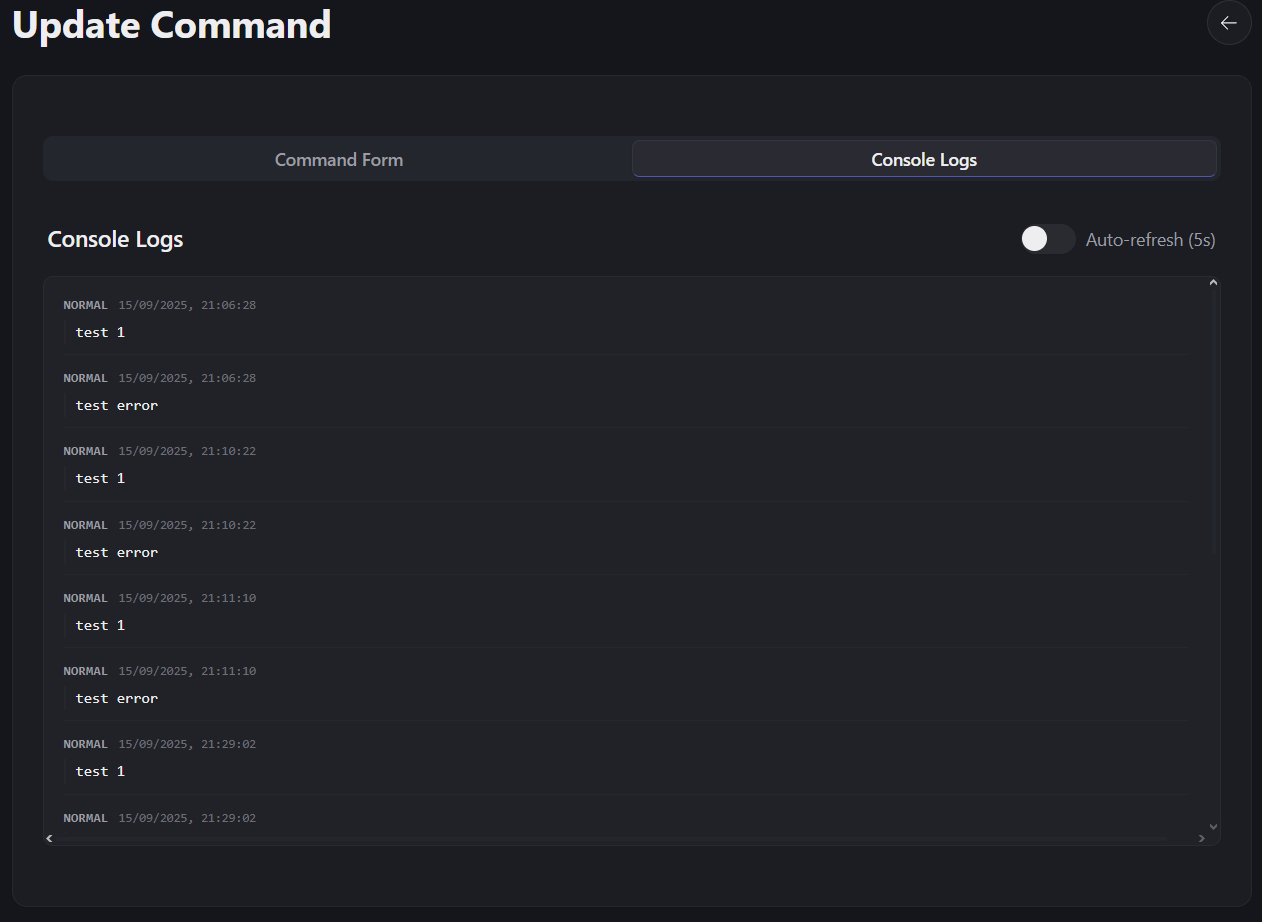
You can check the auto-refresh to have the logs update automatically, or you can manually refresh them by reloading the page (or enabling the option and waiting 5 seconds then disabling it).
Example Scripts
Here's a few example scripts to get you started.
Simple Response
This script will respond with a simple message when the command is used.
ctx.sendReply("Hello, world!");Counter
Here is a custom script implementation of the counter argument from Text commands:
function getCounterValue(counterName) {
    return kvStore.GetValue(counterName)
}

function incrementCounter(counterName) {
    let currentValue = parseInt(getCounterValue(counterName))

    if (isNaN(currentValue))
        currentValue = 0

    currentValue++
    kvStore.SetValue(counterName, currentValue.toString())

    return currentValue
}

let counterName = "mycommand";
ctx.sendReply(`Hello, my previous count was ${getCounterValue(counterName)}. My new count is ${incrementCounter(counterName)}`)
Random Number
This script will respond with a random number between 1 and 100.
ctx.sendReply(`Your random number is ${random.Next(1, 101)}`);Appreciate User1
We've got someone in our Discord named User1, and we want to create a custom counter command for them that also implements random numbers to select from a list of responses.
const responses = [
  "User1 has been the best {{times}} times!",
  "User1 has been the coolest {{times}} times.",
  "User1 has been the friendliest {{times}} times"
]

function getCounterValue(counterName) {
  return kvStore.GetIntValue(counterName)
}
function incrementCounter(counterName) {
    let sval = getCounterValue(counterName)
    let currentValue = parseInt(sval)

    if (isNaN(currentValue))
        currentValue = 0

    currentValue++
    kvStore.SetValue(counterName, `${currentValue}`)

    return currentValue
}

let resp = responses[random.Next(0, responses.length)]

resp = resp.replace('{{times}}', incrementCounter('user1Counter'))
ctx.sendReply(resp)
Sending Embeds
This below example shows you how to send a Discord embed using the ctx.sendEmbed() function. The embed.Message field sets the content for the message itself, and sits above the embed. This can be removed if you just want the embed.
const embed = new ScriptDiscordEmbed();

embed.message = "Message Content";
embed.title = "Embed Title";
embed.description = "This embed was sent with BizzTheMemeBot using a custom script command";
embed.color = 0x5865F2;

const author = new ScriptDiscordEmbedAuthor();
author.name = "BizzyColah";
author.url = "https://bizzy.live";
embed.author = author;

const footer = new ScriptDiscordEmbedFooter();
footer.text = "Footer text";
embed.footer = footer;

const csFieldList = new EmbedFieldList();

const field1 = new ScriptDiscordEmbedField();
field1.name = "Field 1 Title";
field1.value = "Value for field 1";
field1.inline = true;

const field2 = new ScriptDiscordEmbedField();
field2.name = "Field 2 Title";
field2.value = "Value for field 2";
field2.inline = true;

csFieldList.Add(field1);
csFieldList.Add(field2);

embed.fields = csFieldList;

ctx.sendEmbed(embed);
Message Content
Embed Title
This embed was sent with BizzTheMemeBot using a custom script command
Field 1 Title
Value for field 1
Field 2 Title
Value for field 2
Footer text